
Signing into your SMART Account
Click the menus below to find out when to sign in to your SMART Account, how to sign in, and to see frequently asked questions.
 Sign in to your SMART Account
To sign in to your SMART Account
-
Open SMART Notebook software.
-
From the Notebook menu, select Account
 Sign in. The account sign in page opens in a browser.
Note
When you select Sign in, Notebook opens a Sign in dialog to indicate that the sign in page has been opened in a browser. If a browser did not open to a sign in page, select Try Again.
-
The next sign in steps vary depending on whether you’ve used the current computer or device to sign in to your SMART Account before. Follow the steps that best describe the scenario that applies to you.
-
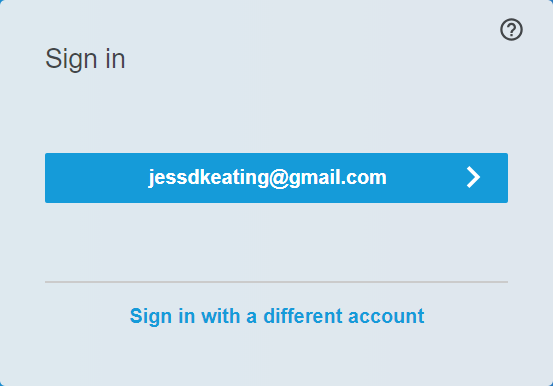
If you’ve signed in before from the current computer or device, the sign in page shows your SMART Account and any other SMART Accounts that have been signed in to from this computer.
-
Select your account to sign in.
OR
-
If you haven’t signed in to your SMART Account on this computer or device before, select the account provider you used to set up your SMART Account.
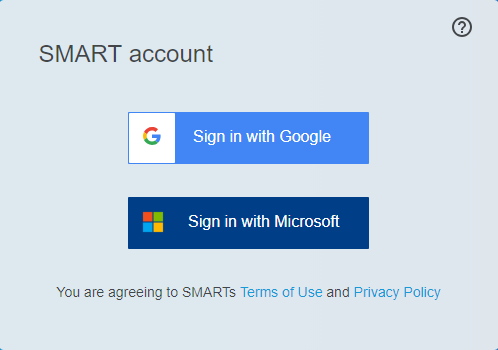
You’re directed to the account provider’s sign-in page.
-
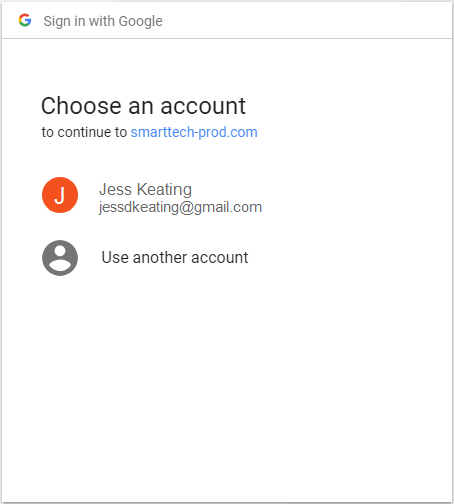
If you’ve signed in to your account provider from this computer or device before, your account appears in the sign-in dialog. Select your account.
OR
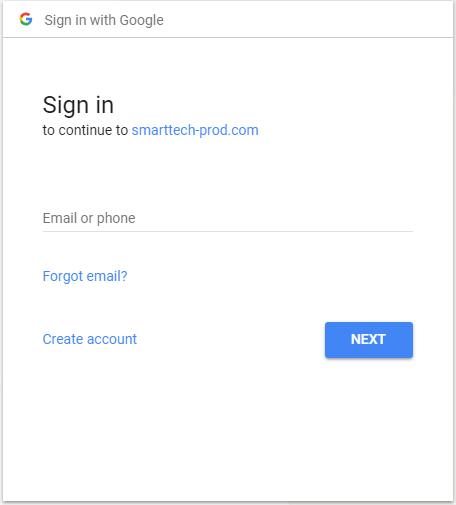
If this is the first time you’ve signed in to your account provider on this computer, enter your account email address and select Next.
Note
If other people have used the computer or device to sign in, their accounts will also appear here. In that situation, select Use another account to sign in with your account.
-
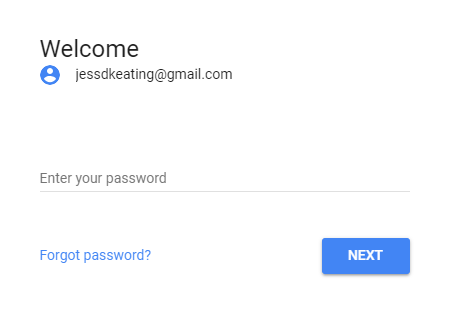
Enter your password and select Next.
-
-
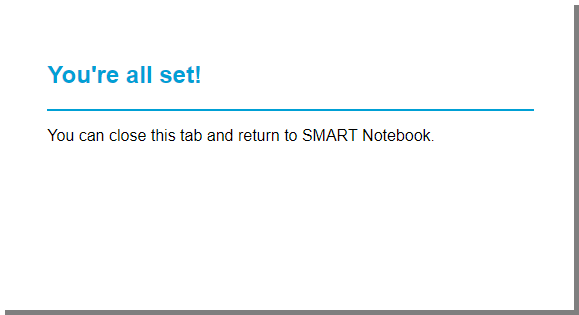
After you’ve signed in, the confirmation message appears. Close the browser and return to SMART Notebook.
-
Sign in to your account.
-
In Notebook, close the Sign In dialog.
When to sign in to your SMART Account and frequently asked questions
Signing in to your SMART Account is required for accessing all the features in SMART Notebook Plus. If you are using SMART Notebook without a subscription, signing in is optional. The following table outlines what happens when you are signed in compared to signed out.
|
Scenario |
Signed out |
Signed in |
|---|---|---|
|
Using SMART Notebook Plus |
The following features are not available:
|
Full access to all features. |
|
Using SMART Notebook without a subscription. |
As of SMART Notebook 22, you can use SMART Notebook without signing in. The following features are not available:
|
Same access as not being signed in. |